
Mac capture workflow
Manage Recent Screen Recordings on Mac from the Menu Bar
Keep completed recordings close while you share them, then decide which originals to retain.
Melt puts recent completed Mac screen recordings in a menu bar tray alongside screenshots. You can open the original, reveal it in Finder, drag the file into an application that accepts it, and pin recordings you need to keep. Optional age-based cleanup moves eligible unpinned captures to the system Trash.
Melt’s interface is in English. The guide keeps English app setting names so you can find the same controls on your Mac.
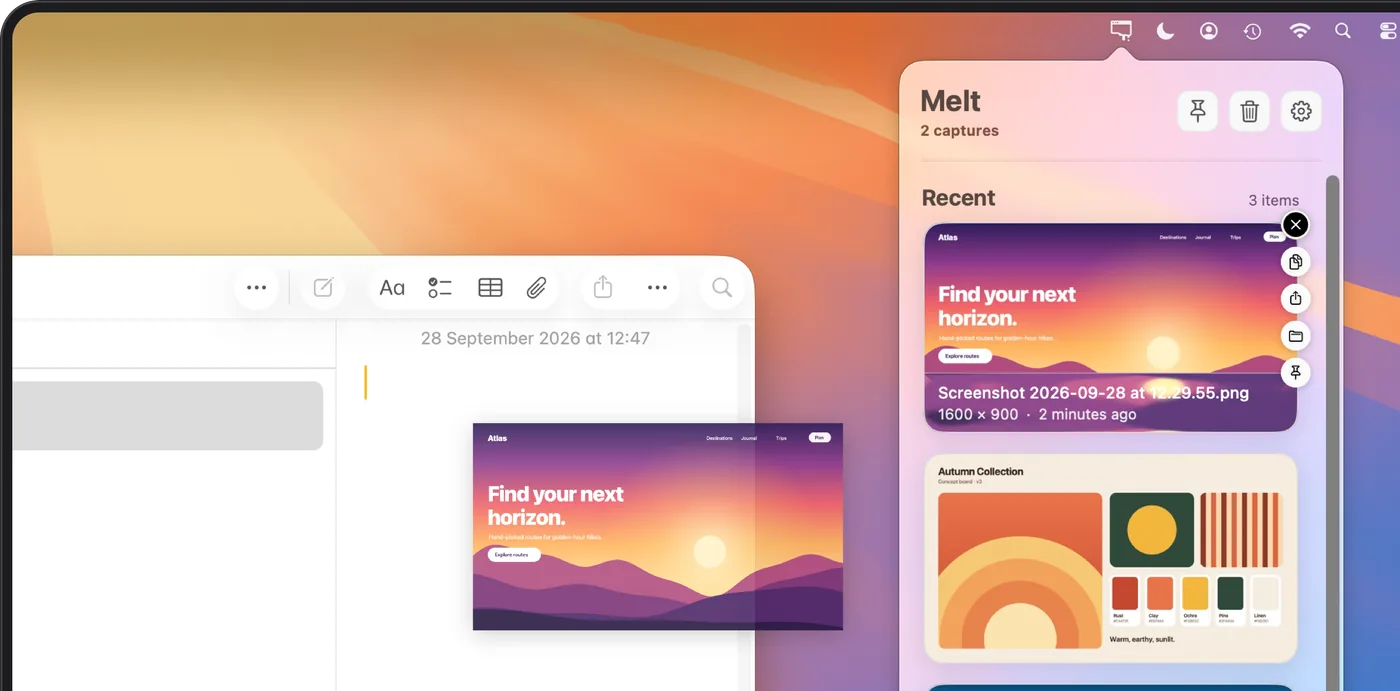
The workflow begins with a recording saved by macOS, rather than a new recording made inside Melt. Use the native Screenshot toolbar to capture your screen, finish the recording, and let Melt manage the recognized file in the folder you selected. That separation keeps capture and file management easy to understand.
Make a recording that Melt can track
Press Shift-Command-5 to open the macOS Screenshot toolbar. Choose a recording option, check the save destination under Options, and start your capture. When you finish, stop the recording and allow the file to finish saving. Apple’s screen recording instructions explain the native recording controls.
In Melt, select the same local folder and keep the app running. Make sure tracking for new screen recordings is enabled. A completed, recognized recording arriving in that folder can then appear in the tray. The recording must be saved as a readable video file; an unfinished capture is not ready to manage or share.
Melt recognizes native .mov screen recordings using capture metadata and a readable video track, with filename recognition as a fallback. It is not a general importer for every video on your Mac. Downloaded movies, edited exports and files from third-party recording software are not the same as a new native capture.
Find the original recording
If you cannot find a recent recording, first check Screenshot’s Save To setting and open that location in Finder. The file may be in a custom folder rather than on Desktop. Choosing a different folder in Melt does not change macOS’s save destination, so compare the two settings directly.
When a recording is in the tray, use Show in Finder or Command-F on the selected capture to reach its original. This is useful when you need to inspect the file, attach it through a file picker, or organize it as part of a project. Melt works with that original instead of maintaining a duplicate library.
Recordings already present when you select the folder are left alone as baseline files. A recording made while Melt was closed is also not imported just because the app starts later. For those files, use Finder. To verify a new setup, make a short fresh recording while Melt is running.
Share a saved recording without hunting through folders
Open Melt’s tray and select the recording you want. Drag the original file to a destination that accepts file drops, or use the card’s share action. For a bug report, this can put the recording directly beside the description of the problem instead of sending you back through the Desktop to find its filename.
Whether an upload succeeds depends on the receiving application. Some destinations impose attachment limits or accept only certain formats. Melt does not compress, transcode or host a recording to bypass those limits. If a service rejects the original, prepare a suitable version using your normal video tools before sending it.
Image copying and video sharing are different actions. Command-C in Melt copies a screenshot image; it is not a video-to-clipboard command. Use the recording’s original file for a video attachment. Keeping that distinction clear avoids expecting a recording to paste like an image into every application.
Pin a recording you will need again
Pin a recording when the original matters for a later conversation, another test, or a project handoff. Pins persist across app restarts and exclude those captures from automatic cleanup. That is useful when temporary recordings and longer-lived references share the same capture folder.
For example, a short demonstration of a problem may remain useful until the issue is resolved. Pin it while the investigation is open. Once you no longer need the original, you can unpin it and let the configured cleanup rule apply, or make a deliberate manual retention decision.
Pinning does not protect a file from changes in Finder or from a manual Trash action. Melt also does not create a backup copy. If a recording becomes a permanent project asset, keep it in your normal project storage and backup workflow. A recent-capture tray should not be the only place you rely on to remember important originals.
Clean up temporary recordings
Melt’s automatic cleanup starts off. If you enable it, choose an age threshold of 1, 7 or 30 days. Eligible unpinned tracked captures move to the system Trash, and pinned ones are skipped. The rule applies to the supported captures Melt manages, rather than to every video in the selected folder.
Read the automatic screenshot cleanup guide before turning it on. The age threshold determines eligibility; periodic checks while Melt is running determine when the move happens. Cleanup is not an exact-time scheduler, and closing the app stops its checks.
A recording in Trash still exists until the Trash is emptied. You can review it there if you need the original back. Emptying Trash removes that recovery route, and moving a file to Trash alone may not immediately free its occupied storage. Treat clearing large recordings as a reviewable file decision.
Troubleshoot a missing recording
Use a short new recording to check the full path from capture to tray:
- Confirm Melt is running and recording tracking is enabled.
- Compare macOS Screenshot’s Save To destination with Melt’s chosen folder.
- Finish the recording and confirm the
.movoriginal appears in Finder. - Check the tray after the file finishes saving.
- If the original remains missing from Melt, contact Melt support with the steps and macOS version.
You do not need to send the contents of a private recording to describe a setup issue. The save destination, whether the app was open, and whether the capture came from the native toolbar are useful starting details.
For a dedicated capture folder, follow the screenshot save location guide. Melt requires macOS 15 or later, keeps its capture workflow local, and uses no app account or cloud library. See Melt’s features and download for the menu bar workflow.