
Mac capture workflow
How to Stop Screenshots Cluttering Your Mac Desktop
Move new captures off the Desktop, tidy the backlog in Finder, and decide how long temporary screenshots should stay.
Mac screenshots pile up on the Desktop because that is where macOS saves them by default. Press Shift-Command-5, open Options, and choose a dedicated folder under Save To. Turn on Stacks to group the screenshots already on the Desktop, then review and move old ones to the Trash in Finder. With cleanup enabled, Melt can move eligible unpinned captures from the new folder to the Trash.
Melt’s interface is in English. The guide keeps English app setting names so you can find the same controls on your Mac.
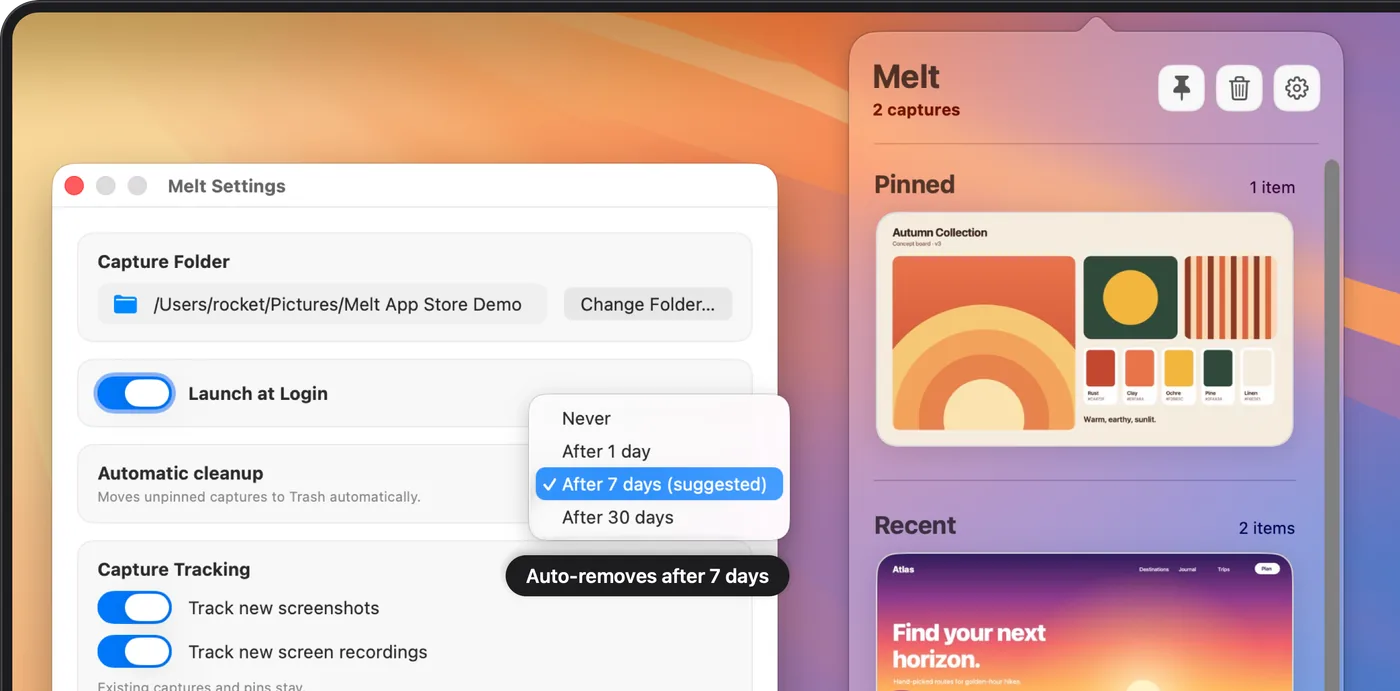
A Desktop full of screenshots is rarely the result of one decision. Each capture is useful for a minute, saved where macOS puts it by default, and never moved again. Screen recordings land in the same place and take far more space. The fix has two parts: change where new captures go, and clear the ones that are already there.
Why screenshots end up on the Desktop
macOS saves screenshots and screen recordings to the Desktop unless you choose another location. The Desktop is also where people keep downloads, documents in progress and shortcuts. Every capture added there makes the files you actually need harder to see.
If Desktop & Documents Folders is turned on in your iCloud Drive settings, the Desktop also syncs to iCloud. Each screenshot and recording saved there then uploads and uses iCloud storage, even when you only needed it for a moment. Moving captures to a folder outside Desktop and Documents keeps them local.
Pick the approach that fits how you use screenshots
| Approach | What it changes | Best for |
|---|---|---|
| Separate screenshot folder | New captures stop landing on the Desktop | Anyone who saves screenshots as files |
| Stacks on the Desktop | Existing captures are grouped into one pile | A quick visual tidy without moving files |
| Copy to the Clipboard | No file is created at all | Captures you paste once and never need again |
| Automatic cleanup | Old unpinned captures move to the Trash | Folders that keep refilling with temporary files |
Most people combine the first and last rows: a dedicated folder that something else keeps tidy. The sections below cover each one in order.
Send new screenshots to their own folder
- In Finder, create a folder such as Screenshots in your home folder or in Pictures. Avoid Desktop and Documents if they sync to iCloud.
- Press Shift-Command-5 and click Options.
- Under Save to, choose Other Location and select the new folder.
- Take a test screenshot with Shift-Command-4 and confirm it appears in the folder.
The setting applies to screenshots and screen recordings made with the keyboard shortcuts and the toolbar. It does not move files already on the Desktop. The screenshot location guide covers this setting in more depth, including what to do when a capture seems to go missing.
If you mostly paste screenshots into chats, a folder may be more than you need. Add Control to any shortcut, such as Control-Shift-Command-4, to copy the capture without saving a file. The screenshot shortcuts guide lists every combination.
Group the screenshots already on the Desktop
Click the Desktop, then choose View → Use Stacks in the menu bar, or Control-click the Desktop and choose Use Stacks. Files are grouped by kind, and screenshots collect in a single Screenshots stack. Click the stack to expand it and click again to collapse it.
Stacks only change how the Desktop looks. The files stay where they are, still use the same space, and still sync if the Desktop syncs. Use Stacks to see the problem clearly, then clear the files you no longer need.
Clear old screenshots in bulk
Finder can collect every screenshot on the Desktop into one list:
- Open a Finder window on the Desktop and press Command-F.
- Make sure the search is limited to Desktop, not This Mac.
- Set the first criterion to Name and begins with, then type Screenshot. Older captures may be named Screen Shot instead.
- Switch to list view and click a date column heading to see the oldest captures first.
- Select the ones you no longer need and press Command-Delete to move them to the Trash.
Repeat the search with Screen Recording to find recordings, which usually free the most space. Click Save to keep the search as a Smart Folder in the sidebar for next time. Review the Trash before emptying it: moved files still use storage until it is emptied, and emptying it removes them permanently.
Keep the new folder from filling up again
A dedicated folder moves the clutter out of sight. Without a routine, it still grows. Melt is a menu bar app that watches the screenshot folder you choose and keeps new captures in a tray while they are useful. You can copy an image, drag the original into another app, and pin the captures you want to keep.
Melt’s automatic cleanup is off until you turn it on. Once you choose After 1 day, After 7 days or After 30 days, eligible unpinned captures move to the system Trash, and pinned ones stay. Files already in the folder when you first select it are left alone, so use the Finder steps above for the older backlog. The automatic cleanup guide explains which files are included and how to recover one from the Trash.
A tidy setup in five minutes
Choose a screenshot folder, check that a test capture lands there, turn on Stacks, and clear the oldest Desktop screenshots in Finder. Then decide how long a temporary capture should stay before it goes. Seven days is a reasonable starting point for most people.
Melt requires macOS 15 or later and is a one-time purchase with no subscription or account. It works with your original files on your Mac. See Melt’s features and download. Apple documents the save options on its screenshot support page and in the Screenshot user guide.