
Mac capture workflow
How to Screen Record on Mac, With or Without Audio
Record the whole screen, a window or a selection, choose a microphone, and find the finished file.
To screen record on a Mac, press Shift-Command-5, choose Record Entire Screen or Record Selected Portion, and click Record. To include your voice, choose a microphone under Options first. Stop with the button in the menu bar or Command-Control-Esc. macOS 15 and 26 record microphone audio only; system audio needs macOS 27 or a third-party tool.
Melt’s interface is in English. The guide keeps English app setting names so you can find the same controls on your Mac.
The Screenshot toolbar that takes still images also records video. It works on every Mac running macOS 15 Sequoia or later and saves a standard .mov file. This guide covers the recording steps, what audio each macOS version can capture, how to stop and trim a recording, and where the file ends up.
Record your screen with Shift-Command-5
- Press Shift-Command-5 to open the Screenshot toolbar.
- Choose a recording mode: Record Entire Screen, Record Selected Portion, or on macOS 26 and later Record Selected Window.
- For a portion, drag the frame or its edges to cover the area you need.
- Click Options to check the microphone, timer and save location described below.
- Click Record. For the whole screen with more than one display, click the screen you want to record. For a window, click that window.
Press Esc before step 5 to cancel. Recording only a portion or a window keeps notifications, other windows and the menu bar out of the video. It also produces a smaller file, which matters when you plan to upload it.
Record audio with your screen recording
Open Options in the toolbar before you start. Under Microphone, choose the built-in microphone or a connected one. With None, the recording is silent. A selected microphone records your voice and anything else the microphone hears, including sound coming from the Mac’s speakers.
What macOS records depends on the version:
| macOS | Your microphone | System audio, recorded directly |
|---|---|---|
| 15 Sequoia | Yes | No |
| 26 Tahoe | Yes | No |
| 27 Golden Gate | Yes | Yes, with Include System Audio |
Both settings are under Options in the Screenshot toolbar. On macOS 15 and 26, recording sound from an app or a video without a microphone requires a third-party audio routing tool or a recorder that captures system audio. Use headphones if you narrate with the microphone, so the speakers do not feed back into the recording. For a clear voiceover, record in a quiet room and do a five-second test first.
Choose the other recording options
The same Options menu controls the rest of the recording:
- Timer waits 5 or 10 seconds after you click Record, so you can switch to the right window first.
- Show Mouse Clicks draws a circle around the pointer on each click. Viewers can follow the steps more easily in tutorials and bug reports.
- Save to sets where the finished file goes. The default is the Desktop.
- Capture Format, on supported Macs with macOS 26 or later, records SDR (Most compatible) with H.264 or HDR with HEVC. Keep SDR for files you plan to send or upload.
You can also start a recording from QuickTime Player with File → New Screen Recording. On recent macOS versions this opens the same Screenshot toolbar, so the steps and options above apply.
Stop and trim the recording
Click the stop button in the menu bar, or press Command-Control-Esc. A thumbnail appears in the corner of the screen. Click it to trim the start and end of the clip or share it. If you leave it, the recording saves to the chosen location after a few seconds.
To trim later, open the file in QuickTime Player and choose Edit → Trim. Drag the yellow handles to the part you want to keep, then click Trim and save. QuickTime can also split a clip and rearrange its parts, which covers most quick edits before sending.
Find the recording and keep it close
Recordings are named Screen Recording followed by the date and time, for example Screen Recording 2026-10-12 at 09.41.07.mov. If you cannot find one, open Options in the toolbar and check Save to. The screenshot location guide shows how to set up a dedicated folder for recordings and screenshots.
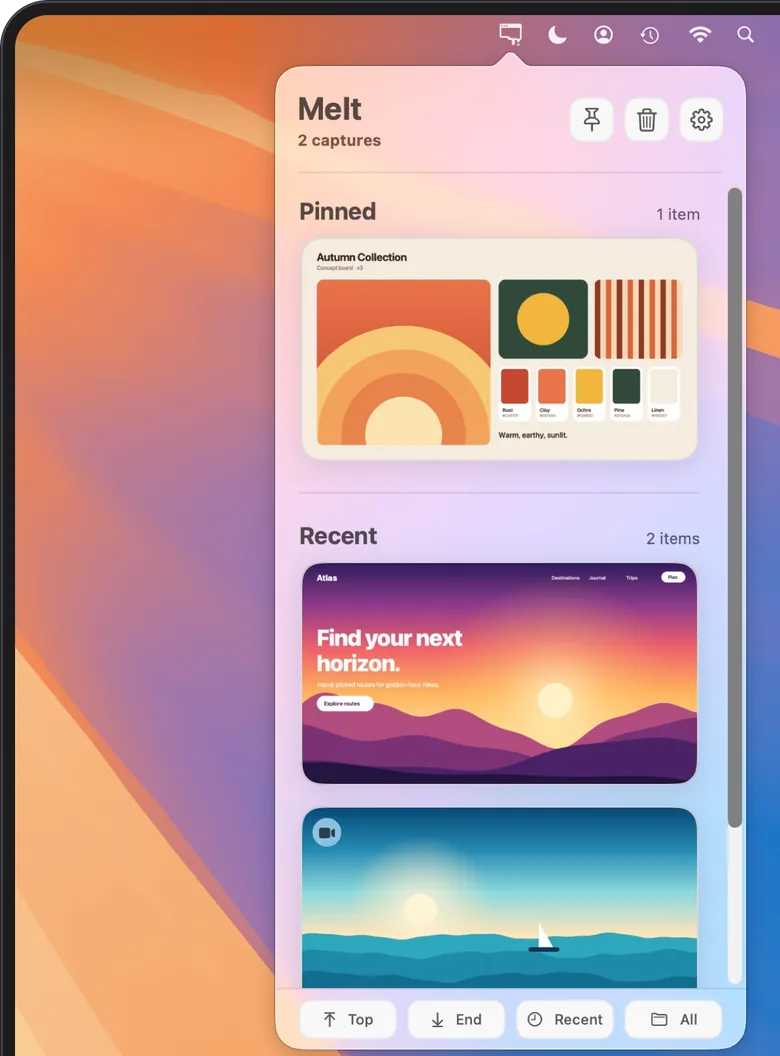
Screen recordings grow quickly. A few minutes of full-screen video can take hundreds of megabytes, often more than every screenshot on the Desktop combined. Melt shows new completed recordings saved to its selected folder in its menu bar tray, next to your screenshots. You can drag the original into Slack, Mail or a bug tracker, show it in Finder, pin the ones you need, and, if you turn on cleanup, let old unpinned ones move to the Trash after 1, 7 or 30 days. The screen recording management guide covers that workflow in detail.
If the recording does not start or has no sound
- No sound: open Options and confirm a microphone is selected rather than None. Before macOS 27, sound playing on the Mac is not captured by the microphone setting alone.
- Microphone permission: if QuickTime Player or another recording app asks for microphone access, allow it in System Settings → Privacy & Security → Microphone.
- Black window or missing content: some apps, such as the Apple TV app, block recording of protected video.
- Recording keeps going: the stop button sits in the menu bar. If the menu bar is hidden, press Command-Control-Esc.
For Apple’s complete instructions, see how to record the screen on your Mac. Melt requires macOS 15 or later and is a one-time purchase with no subscription. See Melt’s features and download.