
Mac capture workflow
Where Are Screenshots Saved on Mac? Find & Change the Folder
Find a missing screenshot, choose a dedicated folder, and connect that folder to Melt.
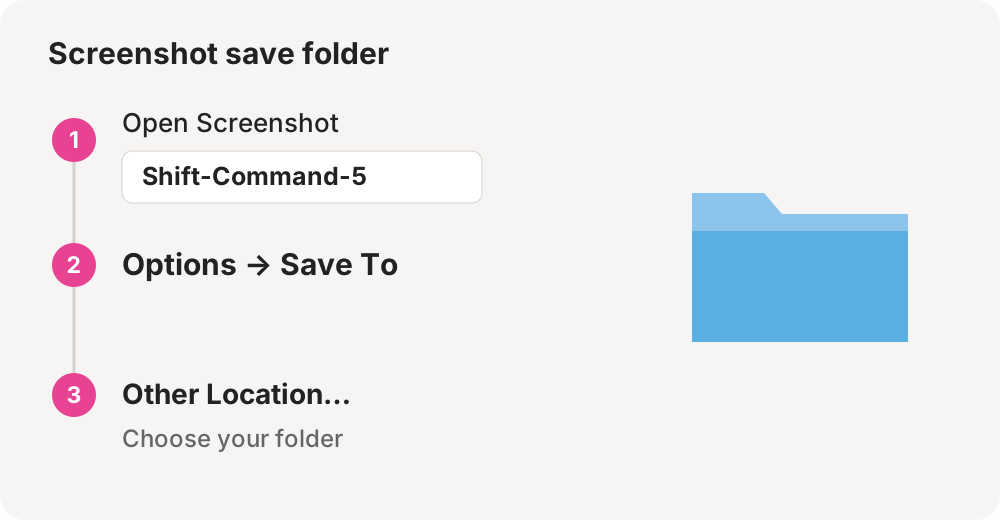
Mac screenshots normally save to the Desktop. If yours are going somewhere else, press Shift-Command-5, open Options, and check Save To. That setting is the best starting point for finding the folder your Mac actually uses. You can also choose a different destination there.
Melt’s interface is in English. The guide keeps English app setting names so you can find the same controls on your Mac.
Find the screenshot you just took
Start with the save destination in Screenshot’s Options menu. Open that location in Finder and look at the newest files. If you changed the destination earlier, checking only the Desktop can make a successful capture seem missing. A folder you selected for a previous task may still be the active destination.
There are two other common situations. A capture sent to the Clipboard will not leave a new file in the screenshot folder. A capture sent directly to another destination may also bypass the folder you expected. Check the current setting before taking another screenshot, then capture a small test area and confirm where the file appears.
The floating thumbnail is a temporary shortcut to the capture. Waiting for it to disappear lets the normal save workflow finish. Moving or acting on that thumbnail can send the capture somewhere else. For a predictable folder workflow, save the screenshot as a file before looking for it in Melt.
Change the screenshot save location without Terminal
- Create a local folder in Finder, such as Screenshots inside your home folder. Pick a location you can find again easily.
- Press Shift-Command-5 to open the macOS Screenshot toolbar.
- Open Options and look under Save To.
- Choose Other Location, select your folder, and confirm the selection.
- Take a test screenshot and check the folder in Finder.
These steps change the destination for future captures. They do not move your existing Desktop files into the new folder. Review those separately if you want to keep everything together. A separate screenshot folder can keep temporary images away from documents on the Desktop even before you add a manager.
You do not need a Terminal command for this setup. The Screenshot toolbar gives you a visible destination you can inspect and change again. If you later switch back to the Desktop, repeat the same process and select Desktop as the save destination.
Connect the same folder to Melt
Melt gives you another way to reach new screenshots: a tray in the menu bar, with previews, image copying and access to the original files. First, make sure Melt watches the same folder that macOS uses. Choosing a folder in Melt grants access to that folder; it does not change where macOS saves captures.
Open Melt and select the folder where your test capture was saved. Keep Melt running, then take another screenshot. New recognized captures saved to that folder appear in the tray. Click the menu bar icon to see a preview, copy an image, or drag the original into an application that accepts file drops.
Melt starts with a baseline of files already present in the selected folder. Those existing files are left alone and do not populate the tray as new captures. The test screenshot you took before choosing the folder may therefore remain visible in Finder without appearing in Melt. Take a fresh capture after setup to verify the connection.
Melt watches one selected folder. If you later change Save To in macOS, update Melt’s folder selection as well. For example, changing macOS from Desktop to Screenshots while leaving Melt pointed at Desktop separates the two workflows. Both settings can be correct on their own while pointing to different places.
What if new screenshots still do not appear?
Check the workflow in this order:
- Confirm Melt is running. It observes new arrivals while open, rather than importing every screenshot made while it was closed.
- Confirm Screenshot’s Save To destination and Melt’s selected folder match.
- Make sure tracking for new screenshots is enabled in Melt’s settings.
- Save a new screenshot to that folder rather than to the Clipboard.
- Wait for the file to finish saving, then check Finder and the tray.
Melt recognizes macOS captures; it is not a general photo importer. Moving an old image into the folder or renaming an unrelated image is not a reliable test of screenshot detection. A fresh capture made with the native keyboard shortcut gives you a clearer setup check.
If you previously indexed captures in Melt, those original files can reappear after relaunch while they remain in the selected folder. That restoration is different from importing captures made while Melt was closed. Use Finder for the older files that were never tracked.
Choose between a folder and the Clipboard
A saved file is useful when you need to reuse the screenshot, attach it to more than one message, or retain the original. In Melt, select the saved screenshot and use Command-C to copy its image, or drag its file into your work. Copying the image does not relocate the original.
If you only need to paste a capture once, macOS also supports capturing directly to the Clipboard by adding Control to the capture shortcut. That route avoids a new screenshot file, so there is no original for Melt to show or clean up. Choose the file workflow when you want a recent-capture tray; choose the Clipboard workflow when a one-time paste is enough.
Keep the new folder manageable
After setup, you can pin captures you want to retain and enable automatic screenshot cleanup. Cleanup is off by default. When enabled, it moves eligible old, unpinned captures to the system Trash rather than deleting them permanently. Files already present when Melt first selected the folder remain outside that cleanup workflow.
The same folder can also receive completed native recordings. See the screen recording management guide for how those files enter the tray and why keeping or discarding them deserves a separate decision.
Melt requires macOS 15 or later and is a one-time purchase. It keeps its capture workflow local to your Mac, with no app account or cloud library. See Melt’s features and download if quick access to new captures is the missing part of your current folder setup.
For the native save destination and Clipboard options, see Apple’s screenshot support page and Screenshot user guide.